
Part Collections allow publishers to attach one or more curated parts lists to a Product Page so Library users can browse, review, and order product-specific parts directly from the Product Page experience. Part Collections are not a standalone content type and are assigned to a Product Page.
Article Topics
- Part Collection Creation Process Overview
- How to Manage Part Collections
- How to Order Part Collections
- How to Delete a Part Collection from a Product Page
- How to Update a Part Collection
Part Collection Creation Process Overview
Step 1: Create a Product Page
For information on how to create a Product Page, please see this Knowledge Base Article: Product Pages: Getting Started Guide
Step 2: Create the Part Collection Page
To create a Part Collection, a Documoto interactive Parts Page will need to be created using Page Builder. The only requirement of this Parts Page is that it has a Bill of Materials (BOM). When viewing the Part List from the Product Page, the Item number will be removed and a thumbnail will be added.
For information on how to create Parts Page, please see this Knowledge Base Article: How to Create a Parts Page
Step 3: Add the Part Collection Page(s) to a Product Page
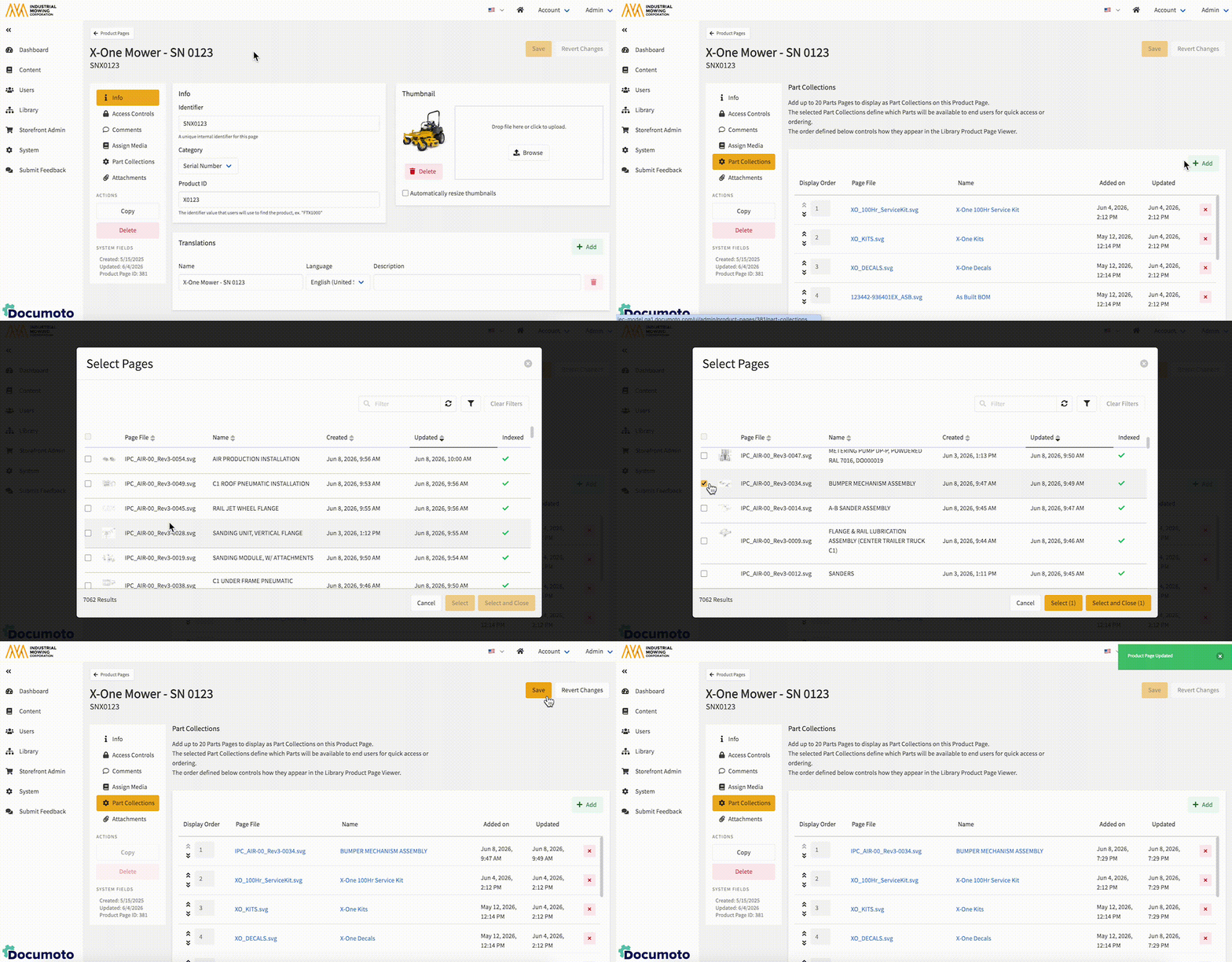
See the article section below for step-by-step instructions on how to add Part Collection Pages to a Product Page.
How to Add Part Collection Pages to a Product Page
In the Documoto Admin Center...
- Go to Content > Product Pages
- Select the Product Page you wish to add a Part Collection Page to
- In the sub-navigation menu, select Part Collections
- Click +Add in the upper right
- Search for and select up to 20 Pages
- Click Select and Close
- Click Save
How to Manage Part Collections
How to Order Part Collections
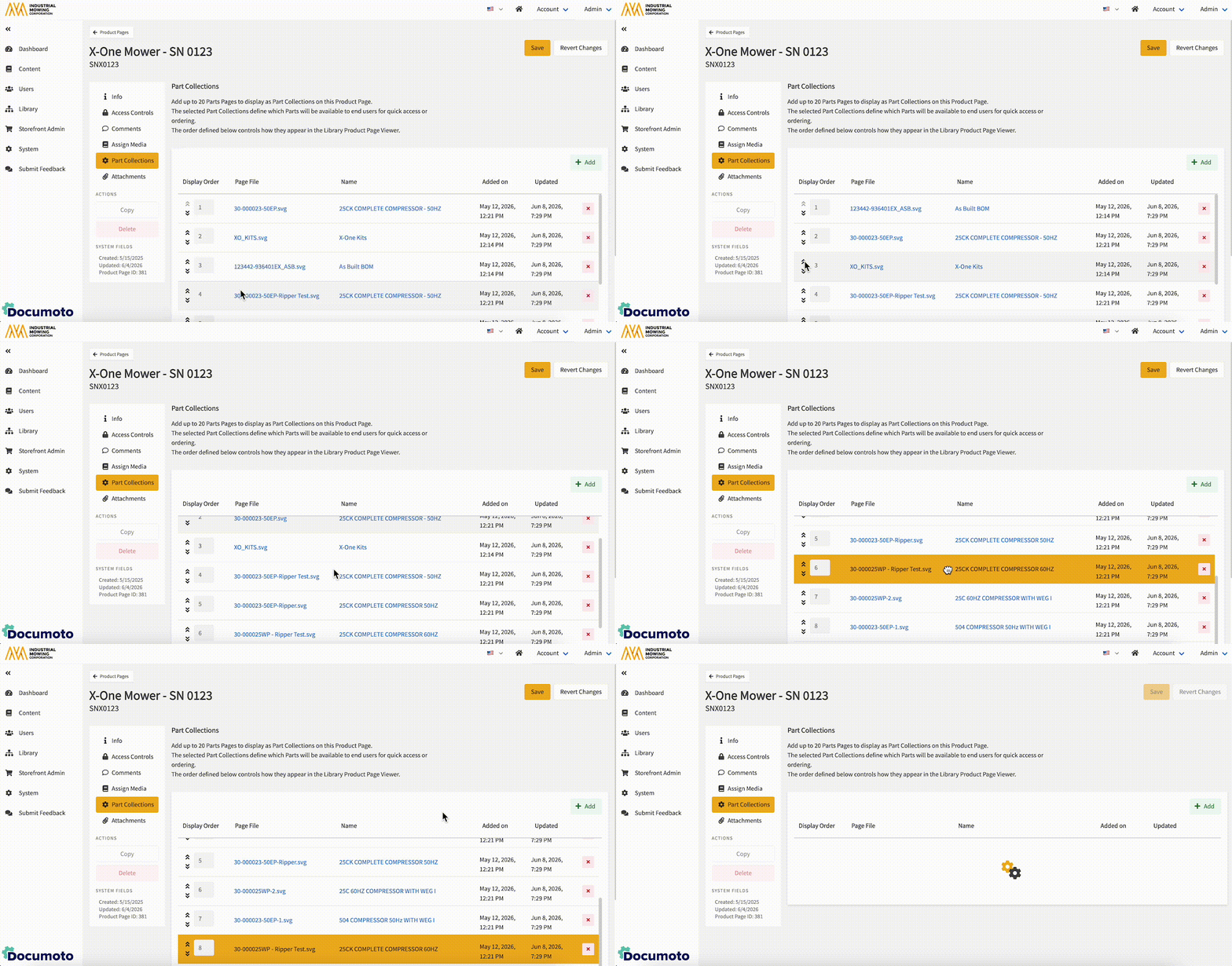
While Viewing Part Collections within a Product Page...
- Click a Part Collection to select it, then drag and drop the Part Collection to the desired order
- Click the up and down arrows in the Display Order column to send the Part Collection to the very top of the order or last in the order
Save all changes made.
How to Delete a Part Collection from a Product Page
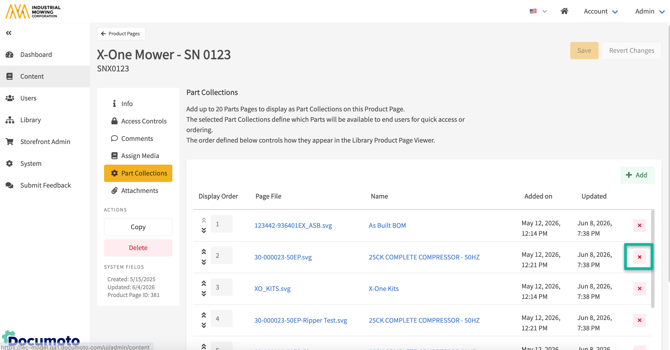
While Viewing Part Collections within a Product Page...
- Click the X to the right of the Part Collection
- Confirm deletion of Part Collection
- Click Save in the upper right
How to Update a Part Collection
In the Documoto Admin Center...
- Go to Content > Pages
- Search for and select the desired Parts Page
- Click Page Builder
- Update Page as desired
- Save and Publish Page