
Search Settings define how search behavior, features, and results function across your entire Documoto tenant. These configurations control the search and filtering experience within the Documoto Library.
In order to access these settings, you must belong to a User Group with Tenant Admin privileges enabled.
Use caution when making changes, as updates will impact all users.
Article Topics
- Accessing Search Settings
- Search Setting Controls
- Search Results Configurations
- Search Features
- Tag Search & Filtering
- System Field Search & Filtering
- Search Settings Support
Accessing Search Settings
- Within Documoto go to Admin > Admin Center > Library > Search Settings
Search Setting Controls
Each setting includes the following controls:
- Default: Tenant-level defaults inherit the Documoto system defaults. System defaults for each setting are noted in the corresponding section.
- Enable / Disable: Each setting can be enabled or disabled using a toggle, button bar, or checkbox - depending on its control type.
Search Results Configurations
The following table lists available Search Results Configuration settings and their system defaults:
| Setting | Description | System Default |
| Default Sort Mode |
Defines how search results are sorted by default. Available options include:
|
Most Relevant |
| Show Media and Product Page Identifiers in Library |
When Enabled, displays Media Identifiers and Part Numbers in search results. When disabled, these identifiers are hidden. |
Enable |
| Hide Books in Search Results & Recently Added | When Enabled, Books are excluded from Search Results, Recently Added, and Type filters. | Disable |
| Hide Pages in Search Results & Recently Added | When Enabled, Pages are excluded from Search Results, Recently Added, and Type filters. | Disable |
| Hide Parts in Search Results & Recently Added | When Enabled, Parts are excluded from Search Results, Recently Added, and Type filters. | Disable |
| Enable Grouping by Media Categories in Contextual Search | When Enabled, groups search bar results by Media Category (rather than Media Type) | Disable |
| Default Search Mode |
Defines the behavior of the "Show only Exact Matches" checkbox in the search bar. Available options include:
|
Exact |
Search Features
The following table lists available Search Feature settings and their system defaults:
| Setting | Description | System Default |
| Allow Export from Search Results |
When Enabled, allows users to export a .zip file containing all media content from Library search results. This enables offline access to downloaded files. |
Disable |
| Where Used Count in Search Bar | When Enabled, displays the "Where Used" count for each entity (e.g. part, page, book, media) in the search bar results | Enable |
Tag Search & Filtering
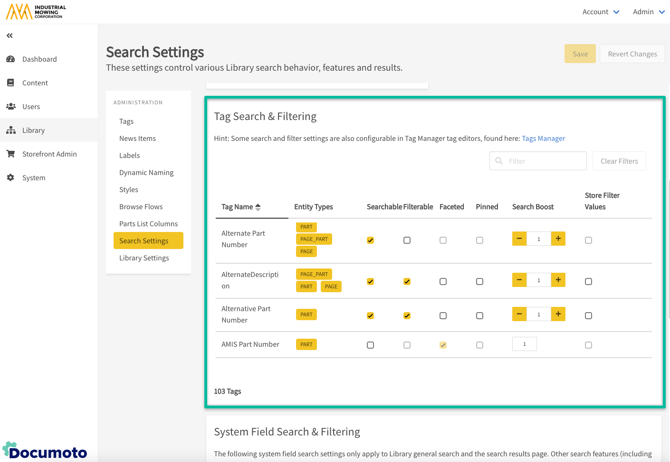
Tag Search & Filtering settings allow Administrators to configure how tags are used for search and filtering within the Library. A scrollable grid lists all tags available in the tenant, with configurable options for each.
| Setting | Description | Control |
| Searchable | Enables the tag to be searchable in the Library | Checkbox |
| Filterable | Enables the tag to be used as a filter in the Library | Checkbox |
| Faceted | For a filterable tag, displays all available tag values as selectable checkboxes within the Library filter | Checkbox |
| Pinned | Pins the filter so it remains visible in Library and Browse Flow search results | Checkbox |
| Search Boost | Increases the tag's relevancy weight in search results | Numeric input |
| Store Filter Values | When Enabled, user-selected filters are saved in their web browser's local storage and automatically re-applied in Library search results. | Checkbox |
For more information on tags and filters, please refer to the following articles:
System Field Search & Filtering
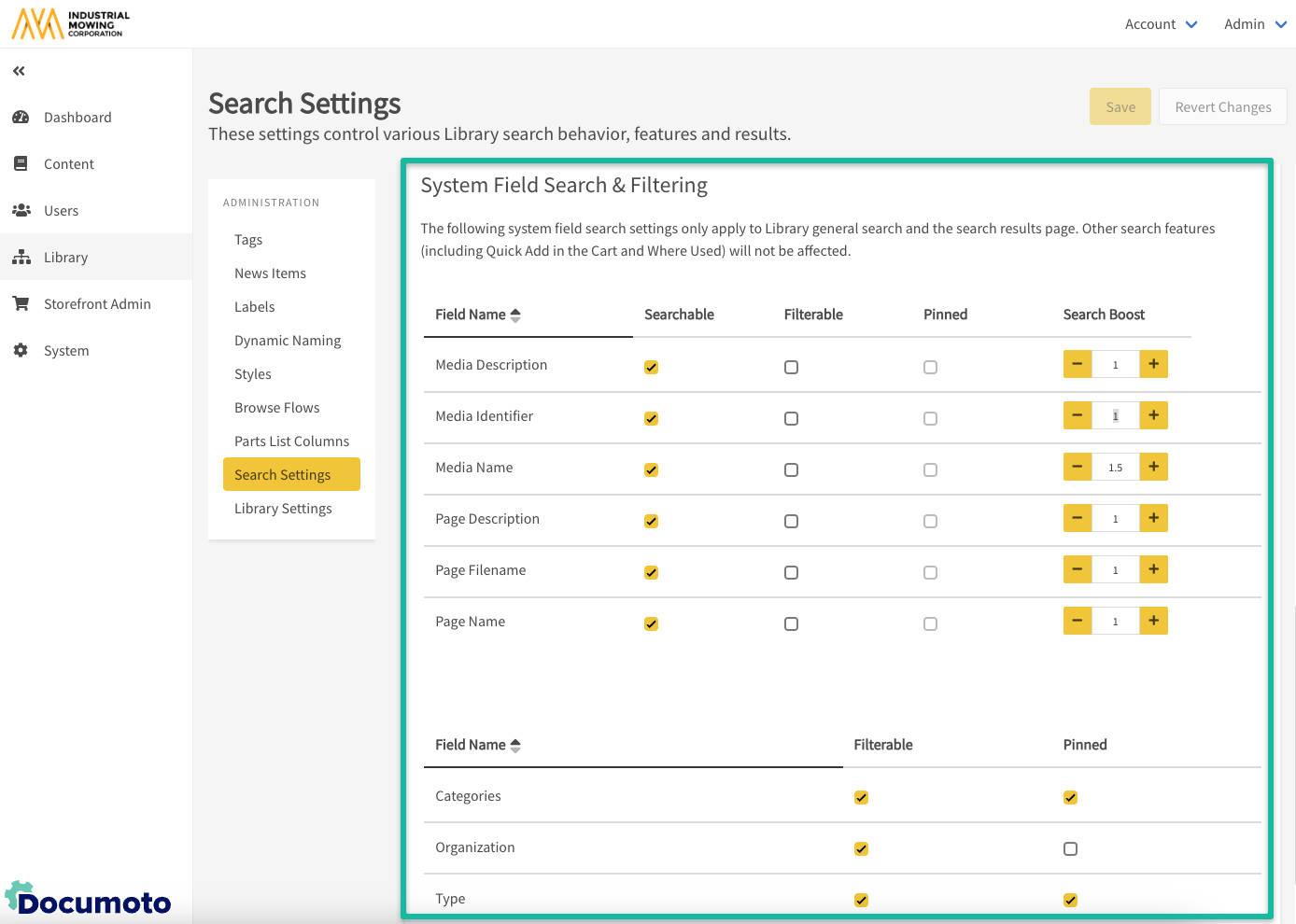
The System Field Search & Filtering settings enables administrators to configure which system fields can be searched, filtered, or pinned, and to set Search Boost levels that adjust their relevance in results.
Administrators can enable or disable the following System Fields for search:
- Media Description
- Media Identifier
- Media Name
- Page Description
- Page Filename
- Page Name
For example, an administrator might disable Media Identifier as a searchable field if that data is not meaningful to end users. Searches would then rely on the remaining relevant fields.
Filterable System Fields
The following System Fields are not searchable, but can be configured to be Filterable and/or Pinned:
- Type
- (Media) Categories
- Organization
Search Settings Support
If you have any questions about how you should configure your Search Settings, please contact your Documoto Customer Success Manager or Support at support@documoto.com.