This article describes different ways users can navigate and search within a Parts Book in the Documoto Library.
Article Topics
- Ways to Navigate a Book
- How to Browse a Book's Table of Contents
- How to Search Within a Book's Table of Contents
Ways to Navigate a Book
With the Part Book viewer, users can:
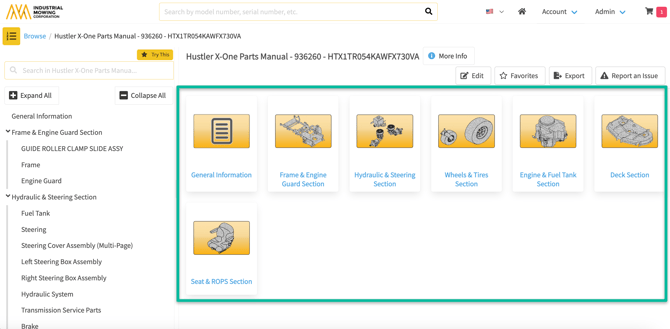
- Browse the Table of Contents visually by selecting Chapters or Pages directly
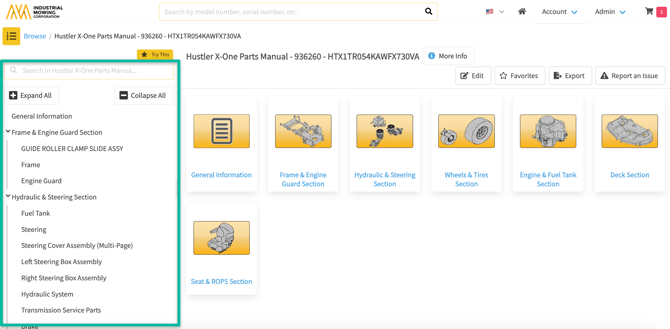
- Browse or search the structured Table of Contents list of Chapters and Pages
- Use the navigation arrows (forward and backward buttons) to move to the next or previous Chapter or Page
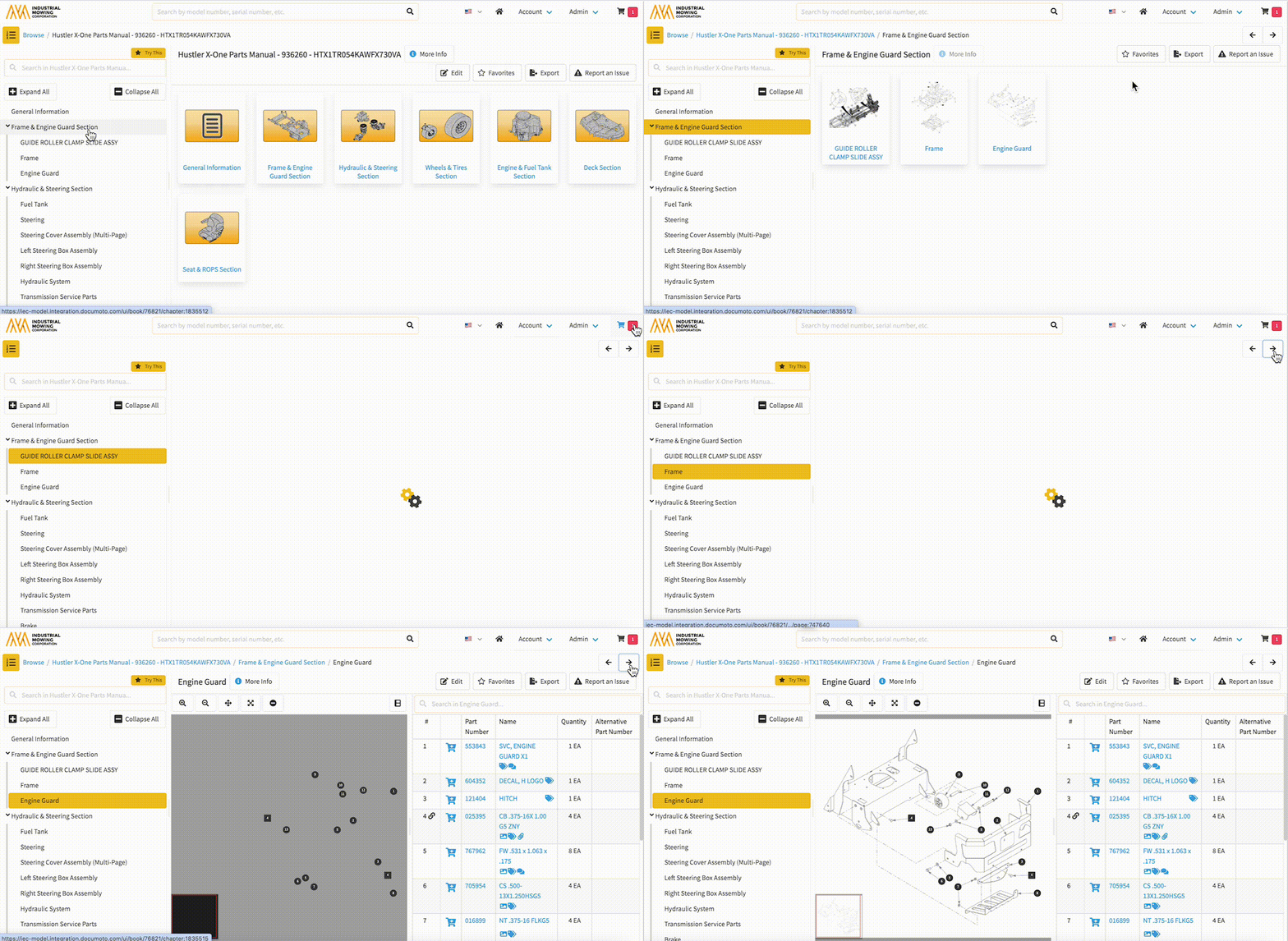
The navigation arrows only appear once a Chapter or Page has been selected
How to Browse a Book's Table of Contents
-
When a Parts Book is opened on desktop, the Table of Contents opens automatically and remains visible while browsing.
-
By default, the Table of Contents will be fully expanded - showing all Chapters, Sub-Chapters, and/or Pages
- The Table of Contents can be manually opened or collapsed at any time using the TOC icon.
- Chapters are indicated by carrots, or arrows pointing down, next to the chapter name.
- Pages are listed beneath their respective Chapter and indented on the left.
- Select the the Expand All or Collapse All buttons to expand or collapse all chapters, respectively.
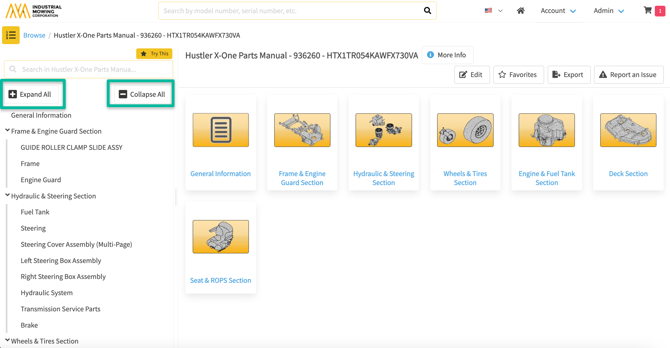
-
Click the carrot next to an individual Chapter to expand or collapse it.
-
Collapse Chapters remain collapsed, as long as the user remains within that book.
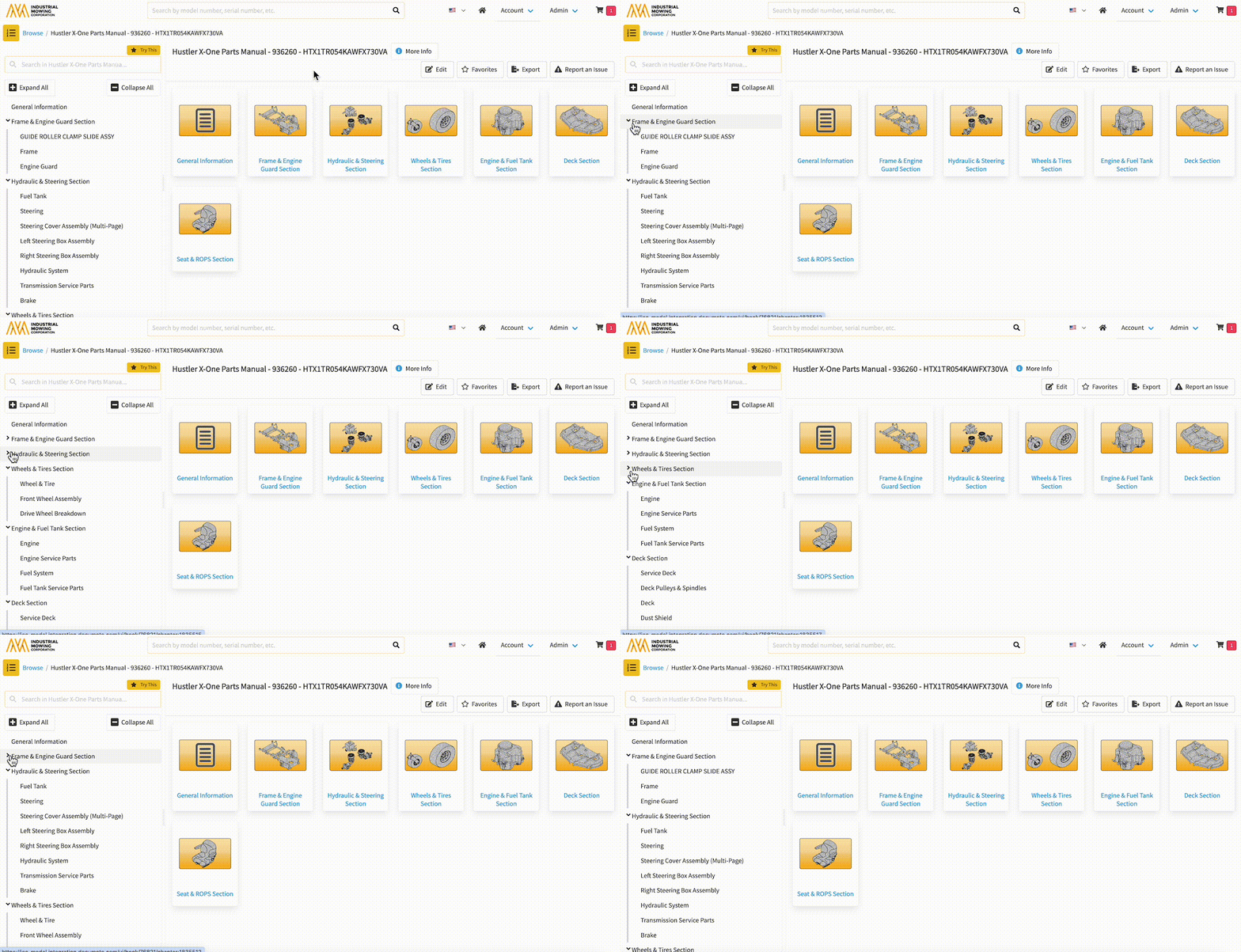
-
The Table of Contents is dynamic - it highlights the Chapter or Page currently being viewed
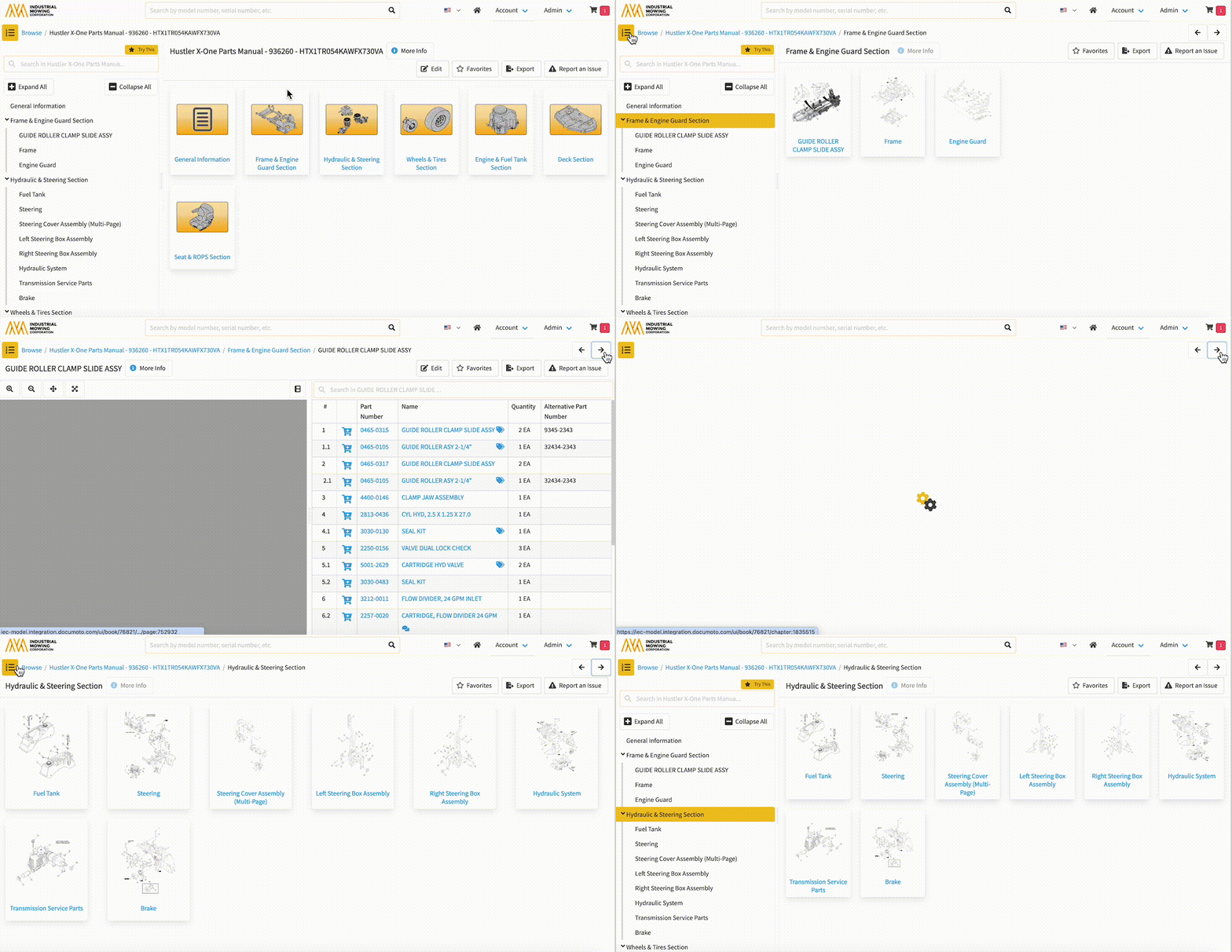
Configure Default TOC Behavior (Optional)
-
Users: Account > Settings > Preferences
-
Administrators: Admin Center > Library > Library Settings
How to Search Within a Book's Table of Contents
Searching Within a Book
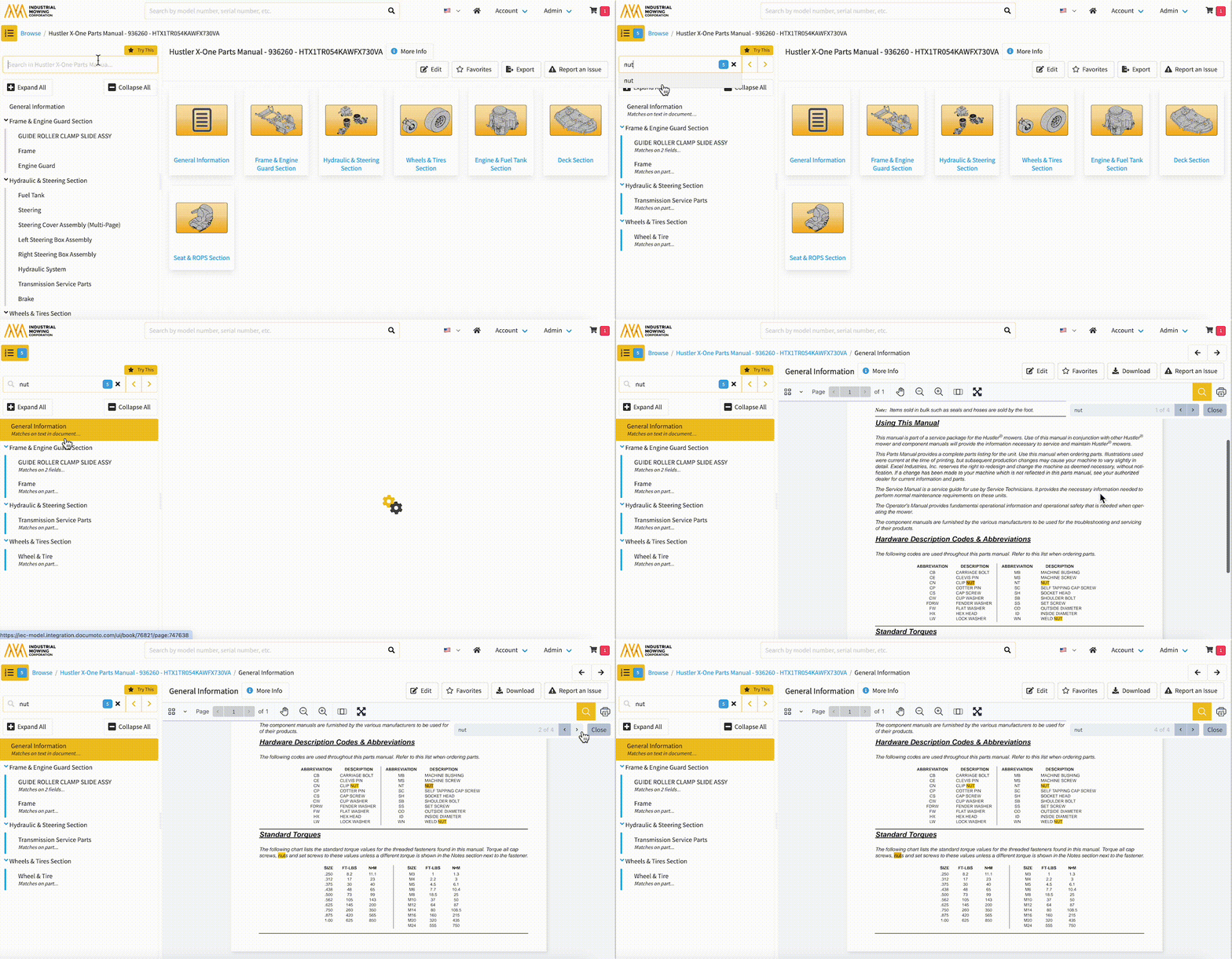
Users can perform a search within a Book using the search bar within the Table of Contents. Search results can be found in all contents of the Book, including both Interactive and Static Pages.
- Within the Book viewer, click within the TOC Search Bar
- In the TOC search bar, enter a keyword, part number, tag value, etc.
- As you type, Documoto will suggest search terms below the search bar.
- Select the term you wish to search for or press Enter on the key board to search for the term you have typed.
- The count to the right of the TOC button
 will indicate the number of results matching the keyword.
 - The number of results matching the keyword will also appear to the right of the search term.
- Non-matching results are hidden until the search is cleared.
Viewing and Navigating TOC Search Results
-
If the search term is found, Documoto will show the matching Pages only under the TOC Search Bar. If the term matched a Page Name, the term will be underlined in the Name. If Part level information was matched, Documoto provides details of the match. I.e.: Matches on text in document, Matches on part, Matches on # fields
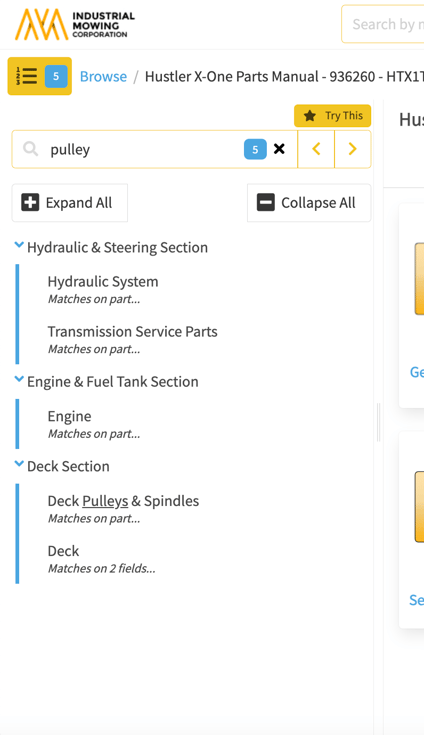
- The arrows on the right side of the TOC Search Bar can be used to move between matching Pages in the results.
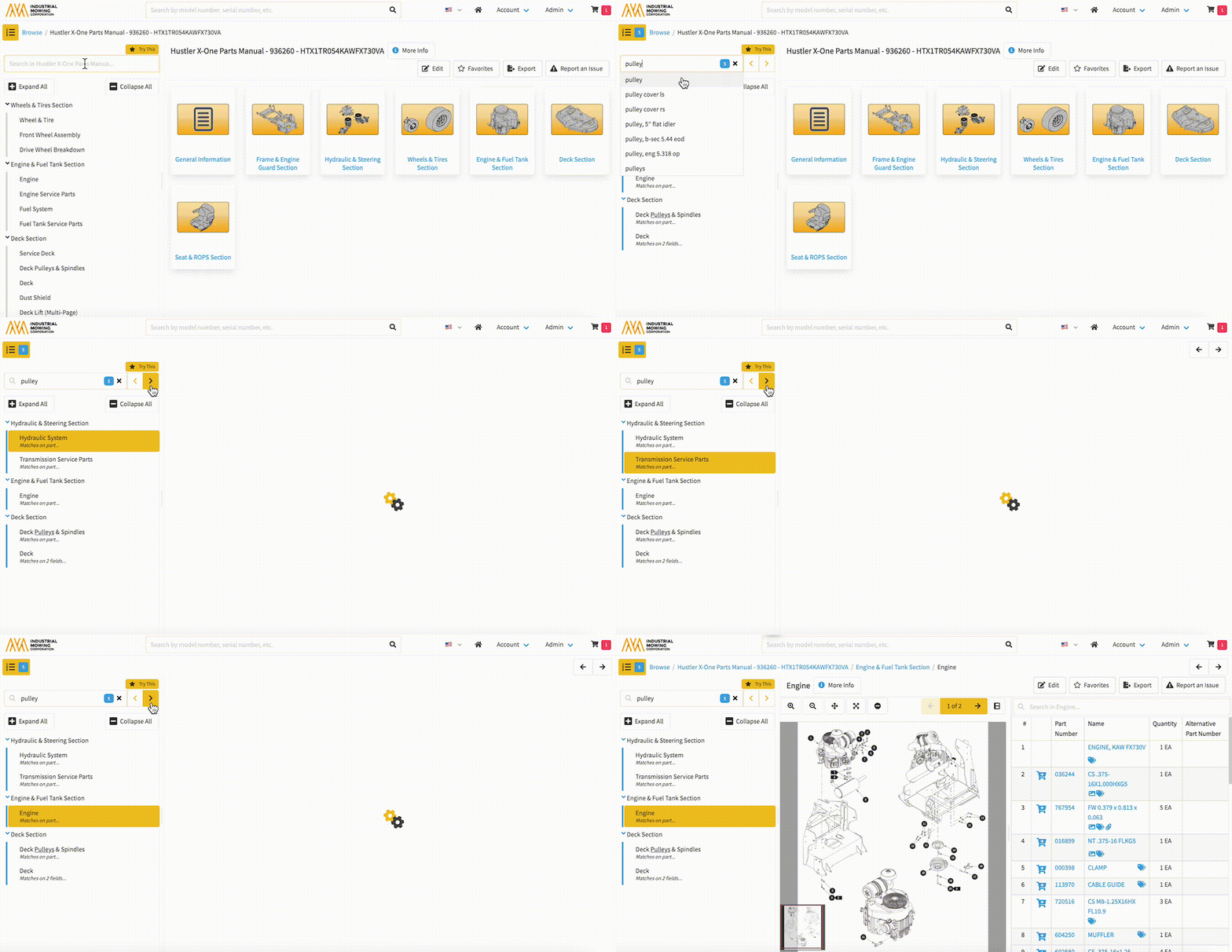
- By clicking on an Interactive Page in the search results, Documoto will open the Illustration and show only the Items that match the search term in the Bill of Materials.
The icon to the right of the search term, above the BOM, will show how many results were found on the page.
The arrows above the BOM can be used to move between Items that match the search term.
The other Parts on the Page will not be shown at this time. To see all Parts on the Page, click the X next to the right of the match count above the BOM. This will show all items within the BOM.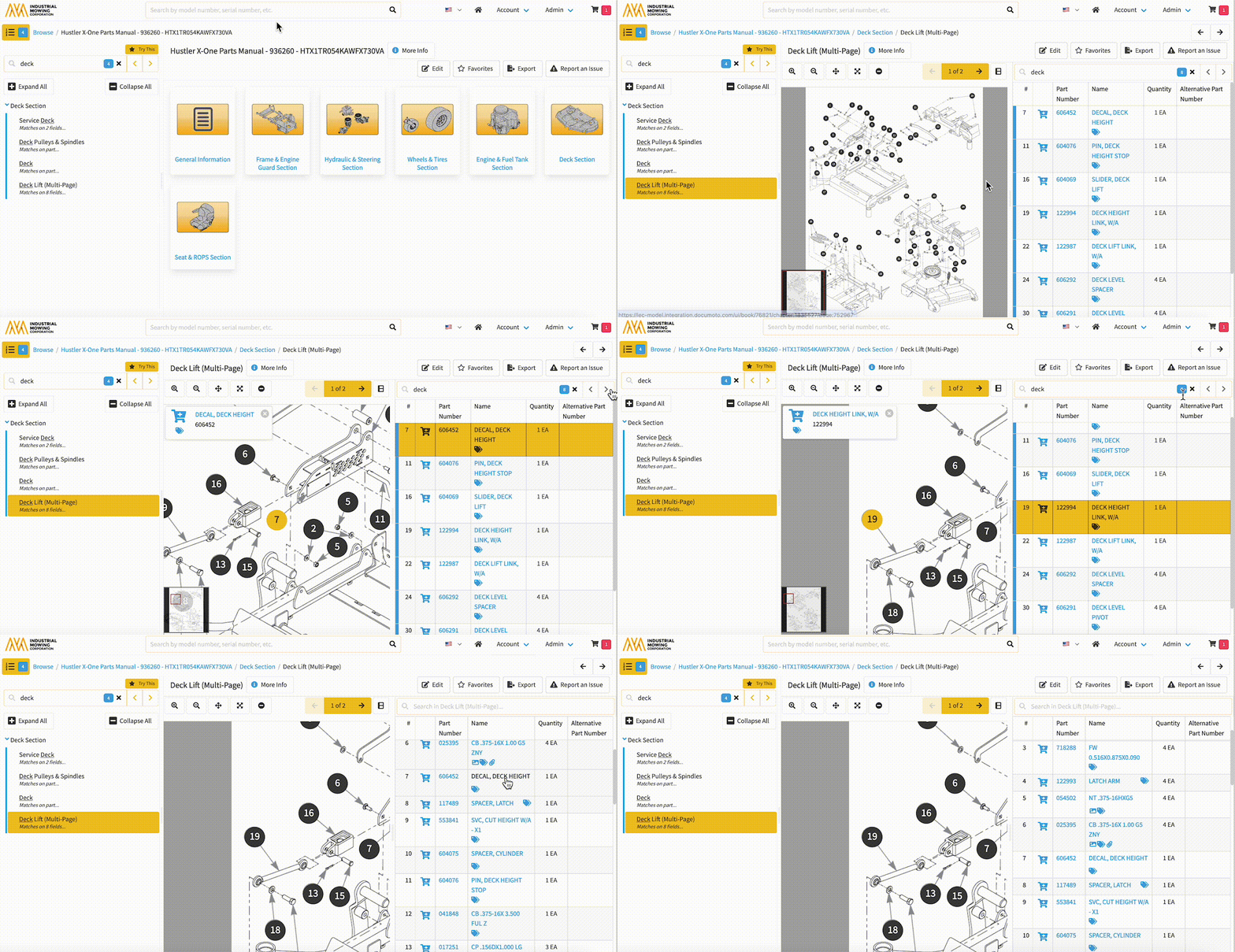
- If the search result is found on a Static Page, the arrows at the top of the document navigate between the instances of the match.