Content Admin Users can use the Product Page Importer to create and update Product Pages using a guided workflow in-app.
Article Topics
- How to Access the Product Pages Importer
- How to Complete a Product Page Bulk Import
- Viewing Submitted Product Page Bulk Imports Jobs in Job Manager
- Template Download
How to Access the Product Pages Importer
Only Users with Publishing/Admin permissions have access to the Bulk Importer via the Content module.
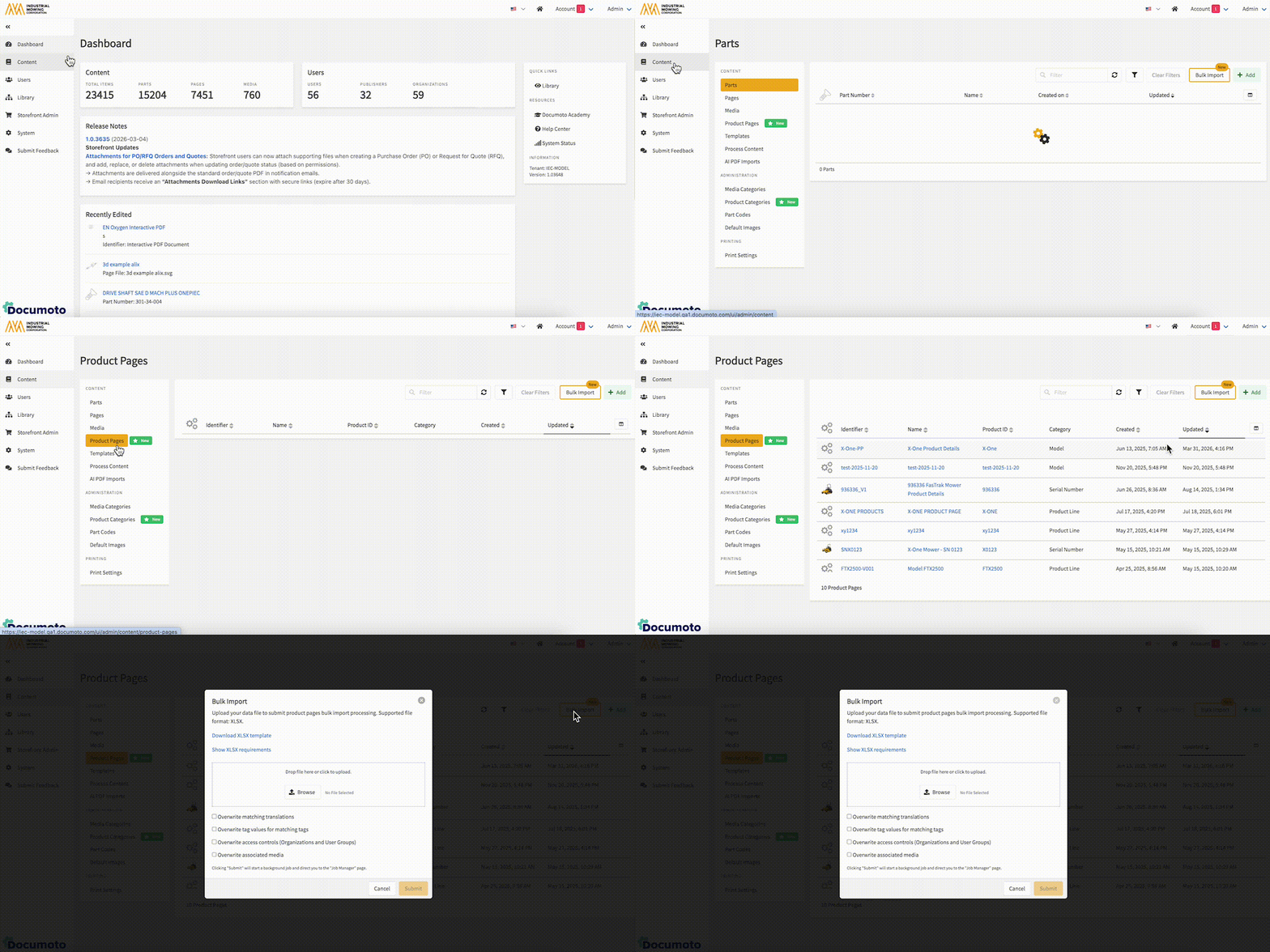
In the Admin Center:
- Click Content in the left navigation menu
- Select Product Pages
- In the upper right, click Bulk Import
How to Complete a Product Pages Bulk Import
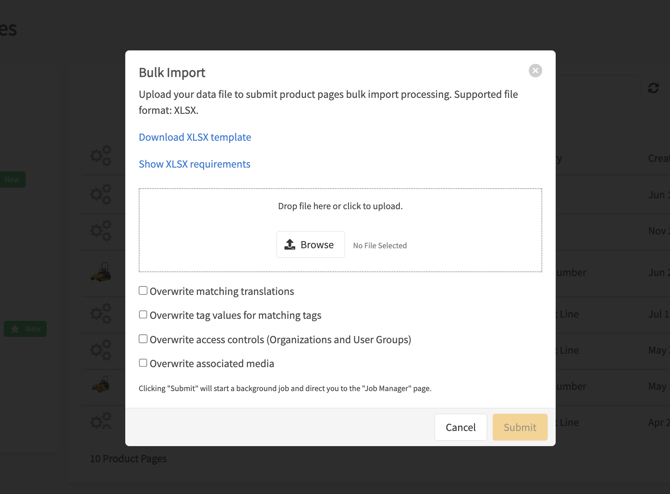
Follow the in-app Bulk Import modal instructions to complete a Product Pages bulk import.
- Download the XLXS template
- Populate the template according the provided requirements
- Upload the completed template to the modal
- Optional: Select Overwrite Options
- Click Submit
Download the XLXS Template:
Available in-app or in the "Template Download" section at the bottom of this Knowledge Base Article.
Template Requirements:
The following are required in order to successfully run the Bulk Import template:
- Identifier
- en-US Category (for new Product Pages)
- Product ID (for new Product Pages)
- en-US Name (for new Product Pages)
The chart below details each column in the template:
| Header | Required? | Description & Formatting |
| Identifier | Yes | A unique identifier for a product page, viewable and searchable in the Admin Center only. |
| en-US Category | For new product pages | Existing Product Category Name of a given locale. See our Language Support Guide. |
| Product ID | For new product pages | A product page identifier for end users, viewable and searchable in Library. Product ID is not required to be a unique value. |
| en-US Name | For new product pages | Language-specific translation name for a product page. At least one translation one is required for new product pages. See our Language Support Guide. |
| en-US Description | No | Language-specific translation description for a product page. See our Language Support Guide. |
| Organizations | No | List of organizations with access to a given product page. For multiple values, use a | separator. |
| User Groups | No | List of user groups with access to a given product page. For multiple values, use a | separator. |
| Media | No | List of media identifiers related to a given product page. For multiple values, use a | separator. |
| Part Collections | No | List of eligible Parts Page hashKey identifiers. For multiple values, use a | separator. The order of identifiers in the cell defines their intended Part Collection display order. |
| [Tag Internal Name] | No |
Assigns tags to a product page. The header must be the tag's internal name. For multiple values, use a Note: delete this column if you are not assigning tags to a product page. |
| Thumbnail | No |
Thumbnail filename. Allowed extensions: |
Optional: Select Overwriting Options
- Overwrite matching translations
- Overwrite tag values for matching tags
- Overwrite Access Controls (Organizations and User Groups)
- Overwrite Associated Media
- Overwrite Parts Collections
By default, no metadata is overwritten.
Viewing Submitted Product Page Bulk Import Jobs in Job Manager
After the Parts Bulk Import template has been Submitted, Documoto will open to the Job Manager. There are 3 possible results:
- Success - A green check icon will appear, indicating success. The message beneath will explain how many parts were updated and/or created.

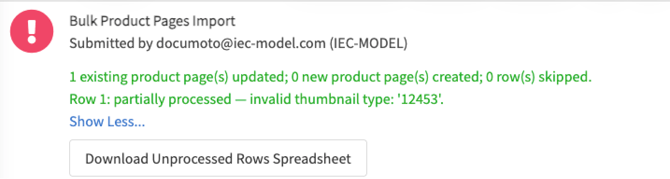
- Partial Success (Complete with Errors) - a red exclamation icon will appear, indicating their was a problem with completing the job. However, it was partially successful. The messaging will explain what data successfully processed and which rows on the template failed. Select the button beneath the messaging to download the 'Unprocessed Rows Spreadsheet'. Use this to make corrections and reprocess the failed rows as applicable.
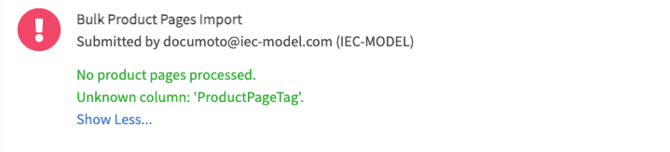
- Complete Failure - a red exclamation icon will appear, indicating their was a problem with completing the job. Additional messaging will state "No Product Pages Processed" with the reason.