This article explains how to use the Copy Branches feature to copy Browse Flow branches and nodes from one Browse Flow to another or within the same Browse Flow.
The Copy Branches feature allows you to copy:
-
A single branch (a parent node and all child nodes)
-
Multiple branches
- Multiple individual nodes
Article Topics
Prerequisites
Before copying a Browse Flow:
-
Create the target Browse Flow you plan to copy to, or
-
Have a targeted Browse Flow planned before copying
For more information on creating Browse Flows please see this Knowledge Base article: How to Create a Browse Flow
Key Terms
- Node: An individual item in the Browse Flow
- Branch or Parent Node: A node that contains one, or more, child noes nested beneath it. Parent nodes can be expanded or collapsed to show or hide their children.
- Child Node: A node that is nested beneath a parent node. Child nodes inherit their position within the Browse Flow hierarchy from the parent node.
- Collapsed: A state indicating that a parent node's child nodes are hidden from view.
- Expanded: A state indicating that a parent node's child nodes are visible.
- Source Browse Flow: The Browse Flow from which nodes are selected and copied from.
- Target Browse Flow: The Browse Flow to which nodes are copied to.
How to Copy Browse Flow Branches
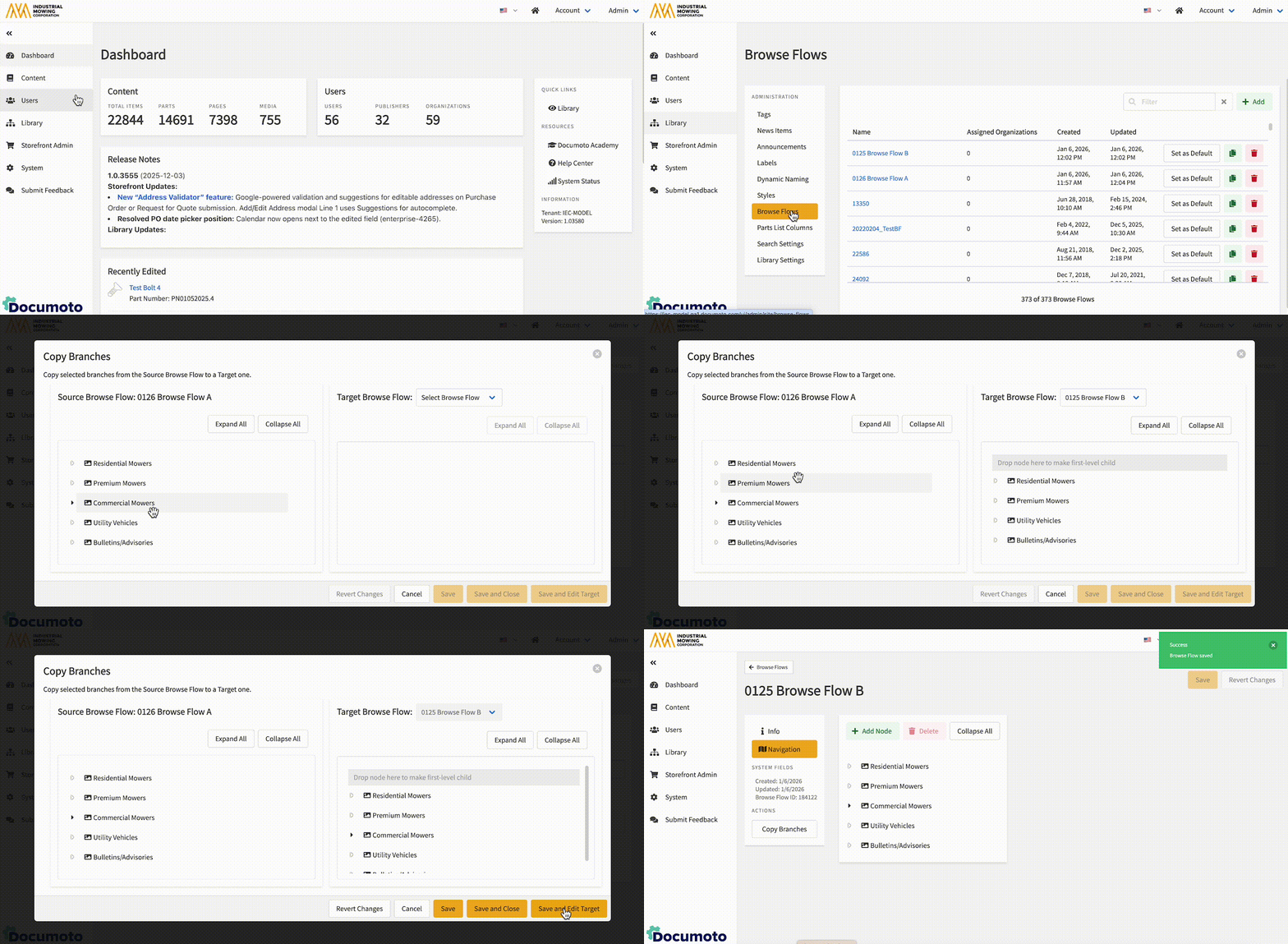
- In Documoto Admin Center, go to Library > Browse Flow
- Select the Browse Flow that you wish to copy Branches from.
- Click Copy Branches on the left.
- The Copy Branches modal will appear.
- On the right, select the Target Browse Flow from the dropdown.
- The Browse Flow selected will appear in the modal under the dropdown.
- On the left, select the Branches or Nodes you wish to copy.
Note: Use Shift + Click to select multiple branches or nodes. - Once the desired Branches are selected, they will appear highlighted (color depends on tenant Styles setting: Info)
- Use the mouse to drag and drop the Branch(es) to the desired place in the Target Browse Flow on the right. (See Drag and Drop Rules below)
- Save (see Save Options below)
Drag and Drop Rules
Selecting a Single Parent Node
When you select a parent node, all of its child nodes are copied, even if:- The parent is collapsed
- The parent is expanded
Selecting Multiple Nodes (Shift + Click)
You can select multiple nodes by holding Shift and clicking.- Selection must be a continuous group of nodes.
- Multiple selection works only within the same level.
- All selected nodes must:
- Share the same parent node
- Be next to each other in the tree
- Share the same parent node
Dragging Nodes
You can drag selected nodes:
- From the Source Browse Flow
- Into the Target Browse Flow
While dragging:
- The cursor shows a copy icon (for example, a
 symbol).
 - A valid drop target is highlighted so you know where you can drop.
Drop Behavior
Drop on a Collapsed Node
- The copied nodes are added:
- Below the target node
- At the same level (as siblings)
Drop on an Expanded Node
- The copied nodes are added:
- Inside the target node
- At the top of its existing children
Save Options
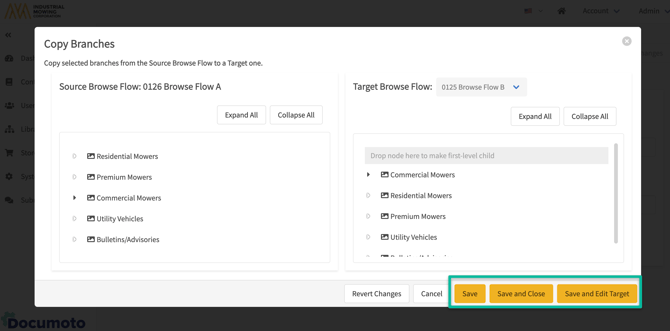
- Save - saves your changes and allows you to continue working in the Copy Branches modal
- Save and Close - saves your changes and returns to the Browse Flow Manager
- Save and Edit Target - saves your changes and opens to the Target Browse Flow. This allows you to make desired edits to the Browse Flow such as rearranging the Browse Flow hierarchy, deleting nodes that are not needed, updating Search Criteria for nodes etc.