
API Keys are used to authenticate requests to Documoto REST Web Services. This article explains how to create an API Key and what to consider before generating one.
Article Topics
Prerequisites
Before creating an API Key, ensure the following requirements are met:
- API Access must be enabled for your Documoto Tenant (based on your subscription)
API access is available as an add-on for most subscription. Contact your Customer Success Manager or support@documoto.com for more information.
- The user creating the API Key must be assigned to a User Group with the following permissions:
- Tenant Admin
- Organization Admin
- API Key Admin
Determine API Key Permissions
Before creating an API Key, decide what level of access it should have. An API Key’s access is determined by:
- The selected Organization
- The assigned User Group(s)
These settings control which API services and content the API Key can access.
Best practice: Assign only the permissions required for your use-case
Permission Overview
|
User Group Permission |
Purpose |
| Tenant Admin | Required for API services that access or modify User Groups |
| Organization Admin | Required for API services that access or modify Organizations or Users |
| Publisher | Required for API services that access or modify content or tags |
| Exporter | Required for API services that allow Media Exports |
Note: Exporter is a Documoto feature that requires a subscription add-on. Contact your Customer Success Manager or support@documoto.com for more information.
How to Create an API Key
- Within the Documoto Admin Center, go to: System > API Key.
- Click + Add.
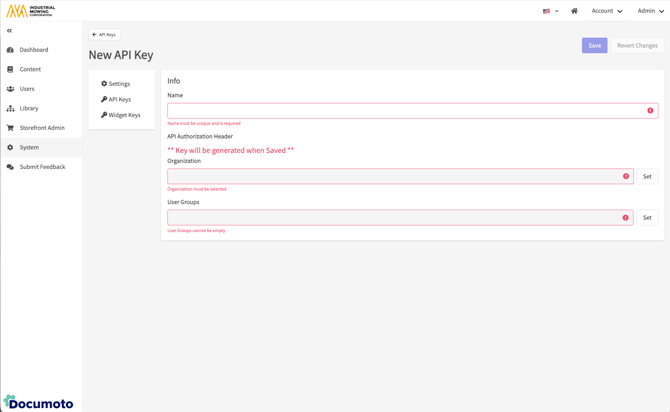
- Enter a Name for the API Key.
- Select the appropriate Organization and User Group(s).
- Click Save.
- Documoto will generate the API Key and display it in the API Authorization Header field.
-
Copy the API Key immediately and store it securely
The API Key is only displayed once and cannot be retrieved later. If you leave the page without copying the API Key, you will need to generate a new one.