
This article explains how Storefront users and Order Viewer/Approvers can attach supporting to Purchase Order or Request for Quote, and add, replace, or delete attachments when updating order/quote status (based on permissions).
Article Topics
- How to Attach a File to a Purchase Order or Request for Quote
- How to View Manage Order Attachments
- Order Attachment Considerations
How to Attach a File to a Purchase Order or Request for Quote
How to Add an Attachment to a New Purchase Order or Request for Quote as a Storefront User:
From the Shopping Cart...
- Click the Purchase Order or Request for Quote Button to check out
- Fill in required form information
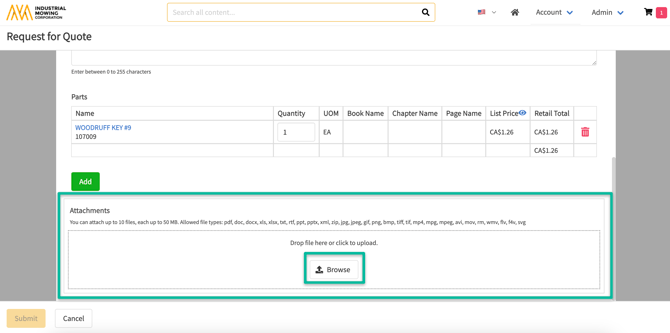
- In the Attachment card at the bottom, select the Browse button
- Select the file you wish to attach or drag-and-drop
Note - must be done one at a time. You may attach additional files using the same process - Click Submit to send Purchase Order or Request for Quote with attachment(s)
Before Submitting the form, Storefront users without Order Viewer/Approver permissions can also download, edit, and delete attachments.
How to Add an Attachment to an Open Purchase Order or Request for Quote as a Storefront User:
Storefront Users may add attachments to their own Purchase Order or Request for Quote after an order has been submitted, as long as the Order Status is Open.
From the Library...
- Click the Account dropdown in the upper right corner
- Select Orders
- Click on the existing, Open Order you wish to add attachments to
- Use the Attachment card at the bottom to add more attachments only.
Note - At this time, order submitters - without order management permissions, may not edit or delete existing attachments - Click Browse and select a file to attach or drag-and-drop
- Click Update to submit added Attachment
How to View and Manage Order Attachments
Attachments can be viewed via email, by the designated email recipient(s) or in-app via Orders.
Capabilities to manage Order Attachments are only available to Users with Order Management Viewer and/or Approver User Group permissions enabled.
How to View Attachments via Email:
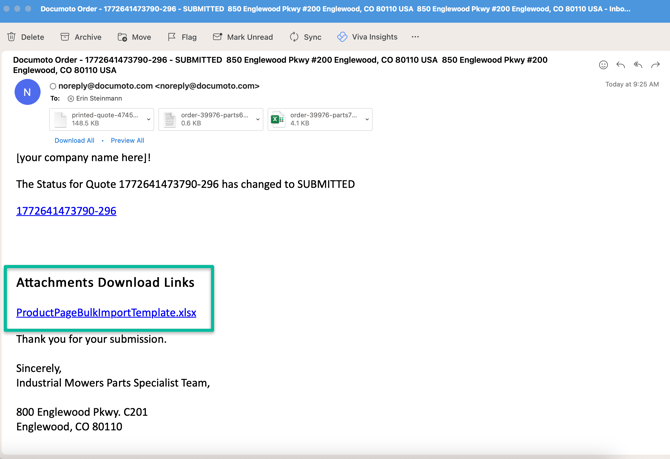
Once an order is submitted that contains an attachment, the designated Email Recipient will receive and email containing a link to download the attachment.
How to View and Manage Attachments in Documoto:
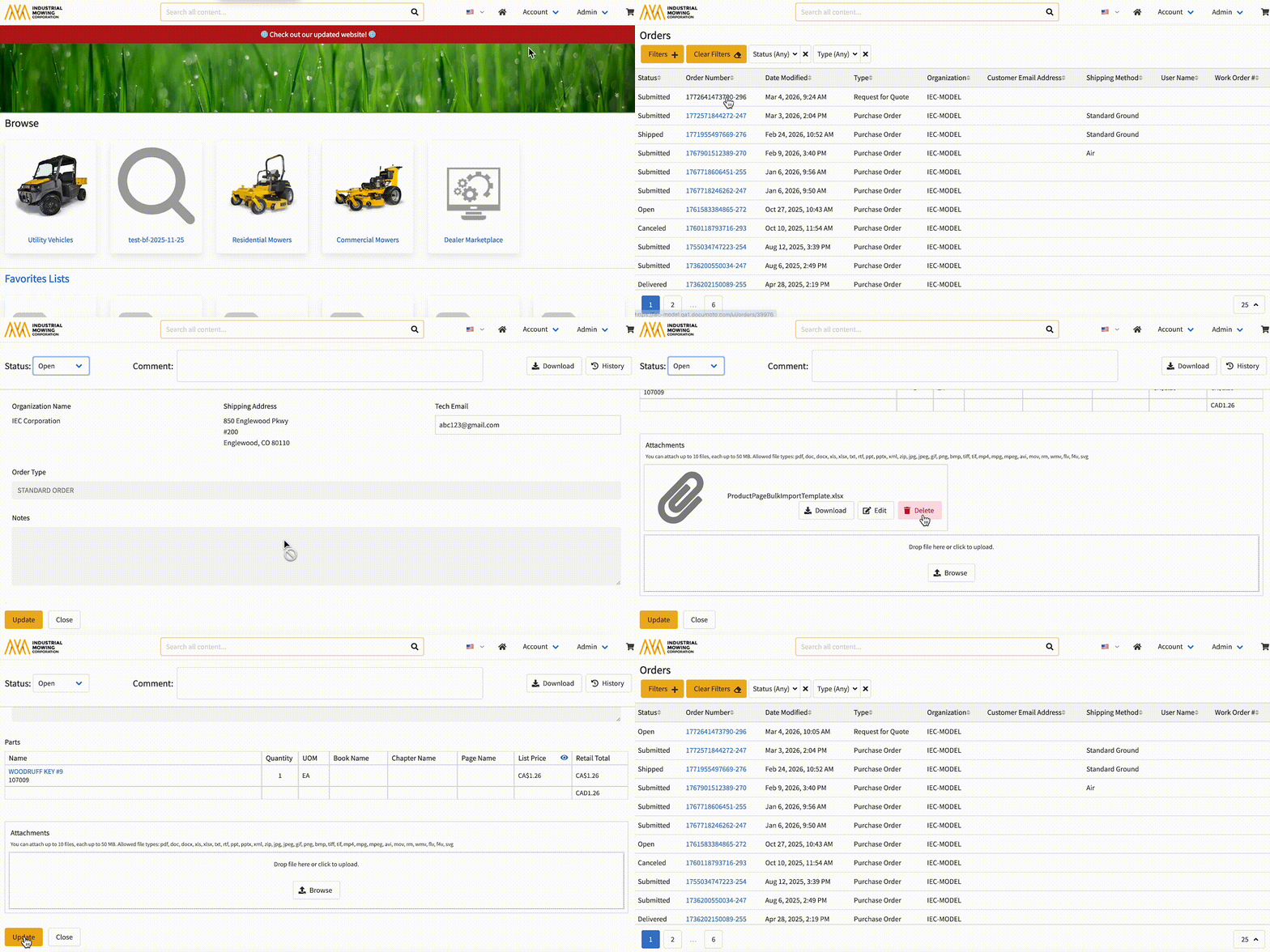
From the Library or Admin Center...
- Click the Account dropdown in the upper right corner
- Select Orders
- Click on the Order you wish to manage attachments for
- Update the Order Status using the dropdown in the upper left
- Use the Attachment card at the bottom to manage attachments - with the correct permissions, attachments can be added, edited (swapped), downloaded, and deleted.
Note - See permissions chart in the Order Attachments Considerations section of this article. - Click Update to save any changes made
Order Attachment Considerations
File Support and Limitations:
-
Up to 10 files, each up to 50 MB can be attached
-
Allowed file types: pdf, doc, docx, xls, xlsx, txt, rtf, ppt, pptx, xml, zip, jpg, jpeg, gif, png, bmp, tiff, tif, mp4, mpg, mpeg, avi, mov, rm, wmv, flv, f4v, svg
Order Attachment Permissions:
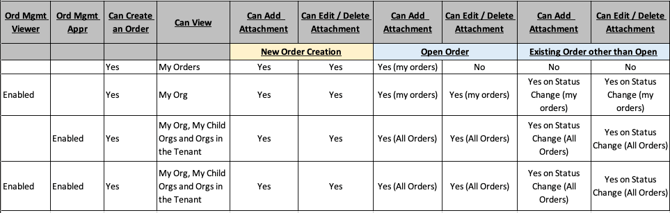
Note: the top row represents Order submitters, with no Order Management permissions.